The guide
From the first click to the first note
Everything in the order you will meet it: getting a licence, downloading hetki, installing it, opening it and putting the licence in, the sound library, playing, updates, and what to do when something is not right. Read it through, or go straight to the part you need. Anything it does not answer, write to contact@idealism.co.
- Try hetki, or buy it
- Your licence
- Download hetki
- Install it
- The first time it opens: the licence goes in
- The sound library
- Playing
- Updates
- When something is not right
1
Try hetki, or buy it
Either way you end up with a licence, a short text file, and the same instrument, nothing left out. A full licence carries your name; a trial one carries the first part of your email address.
The trial
Seven days, the full instrument. Put your email address in on the trial page and the licence appears on the page and arrives by email. The address is used to send you the licence and, when there is a new version of hetki, one email saying so. Nothing else. The address stays on file so that one inbox gets one trial.
The seven days start when the trial licence goes into hetki, not when the email arrives, so you can take a few days to install. Put it in within a week of today and you get all seven days. When the trial ends nothing is deleted: hetki goes quiet, your sessions keep opening, and a full licence brings the sound straight back.
Buying
hetki is €24.99 including VAT, shown in your own currency at checkout. Press buy on the front page. Pay at checkout and you land on a page with your licence and an order number that starts with HTK. A copy goes to your email as well, with the file attached. Keep that page bookmarked; its address finds your licence again.
There is no account to make and nothing to activate. The licence is the whole of it.
2
Your licence
A licence looks like this: a few lines of text beginning
HETKI LICENCE v1, with the name it is licensed to, your
email address, the order number and a date, followed by a block of
letters that proves it is real. It comes to you twice, as text you
can copy and as a file ending in .hetki. They are the
same thing; use whichever is easier.
- It never expires, and it works on all of your computers. Install hetki on each one and paste the same licence.
- It works offline. Once the sound library is on your disk, hetki never needs the internet again.
- It carries your name, so keep it private, the way you would a key.
- A trial licence is the same file with an order number that starts TRIAL.
Lost it? Your email has a copy, and the page you bought or claimed it on finds it again. If both are gone, the support page sends it again to the address it was issued to, at any hour. Or write in from that address and I will send it.
3
Download hetki
The download page has one download for macOS and one for Windows. Each is a folder with the installer, a readme, the installation guide, the user manual and the licence agreement. None of it is the sound library; that comes later, from inside hetki, once the licence is in.
You need: macOS 10.15 or later, on Apple Silicon or Intel, or Windows 10 or 11, 64-bit. About 11 GB of free disk for the sound library while it downloads, on any drive you like. hetki streams from disk and is made to fit an 8 GB machine; part 6 says how.
4
Install it
Close your music software before you start, on either platform.
On macOS
- Open the folder. Safari usually opens the download into a folder in Downloads by itself; if it did not, or with another browser, double-click the zip. Inside is the installer, next to the readme and the two guides.
- Open the .pkg. It is signed and notarised, so macOS opens it without a warning.
- Choose the formats you want. VST3 for most music software, Audio Unit for Logic and GarageBand, and the standalone app for playing hetki on its own. All three are ticked to begin with; untick what you do not need.
- Enter an administrator's password when asked. The plug-ins go into the system plug-in folders and the app into Applications, which is why macOS asks.
On Windows
- Extract the folder. In your Downloads folder, right-click the zip, choose Extract All, and open the folder it makes, then the hetki 1.0.2 Windows folder inside it.
- Run the .exe. It is signed. On a new file Windows may still show its SmartScreen notice for a while; that is normal. Choose More info, then Run anyway.
- Choose what to install. The VST3 plug-in is always installed; the standalone app is your choice, for playing hetki outside your music software. If something still has hetki loaded, the installer tells you which application is holding it before it copies anything, so you can close that and press try again.
Opening hetki in your music software
Most music software finds a new plug-in the next time it starts; Ableton Live finds hetki without a rescan. Logic and GarageBand check a new Audio Unit the first time they open, which can take a moment. hetki is an instrument, so it goes on an instrument track, listed under idealism.
- Logic or GarageBand: make a Software Instrument
track, click the instrument slot on its channel strip, and choose
AU Instruments, idealism,
Hetki. - Ableton Live: open Plug-Ins in the browser on the
left, find
Hetkiunder VST3, and drag it onto a MIDI track. - Other music software: add
Hetkiwherever instrument plug-ins are listed. If it is not there, rescan your plug-ins, and check that the format your software uses was ticked in the installer. - On its own: open the hetki app from Applications on macOS, or from the Start menu on Windows.
5
The first time it opens: the licence goes in
hetki opens silent. The keys light when you play and nothing sounds. That is expected: a small window over the piano asks you to paste your licence, or drop the .hetki file anywhere on it. That is the licence window.
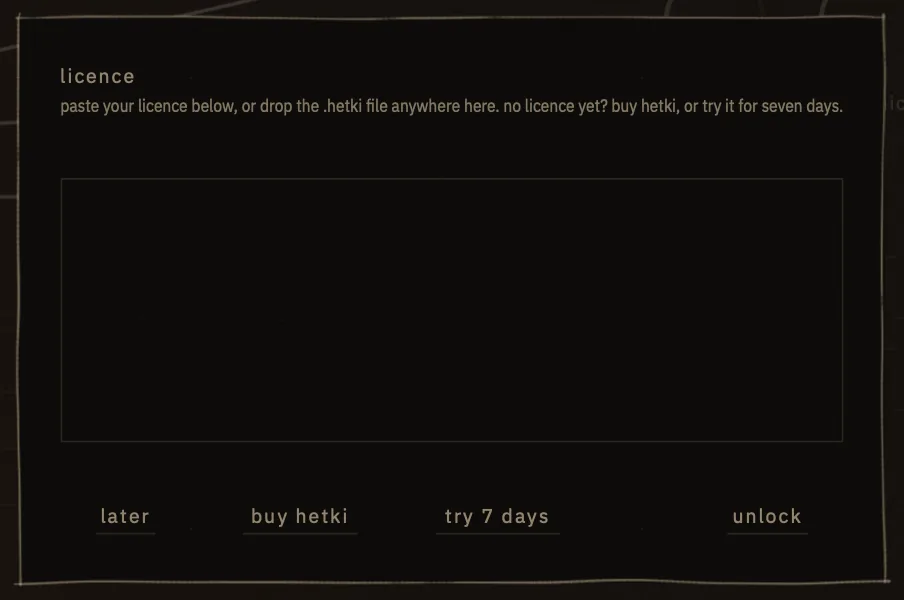
- Paste the licence into the licence window, the whole block from the first line to the last, and press unlock. Or drop the .hetki file anywhere on the window, which needs no button.
- The licence is kept on this computer from now on, so the window does not come back. If the sound library is already on this computer, sound arrives at once. On a first install hetki stays quiet until the library is in, which is the next part.
- On a trial, the seven days start now. Settings shows how many are left, and in the last two days hetki says so each time its window opens; press later and play on.
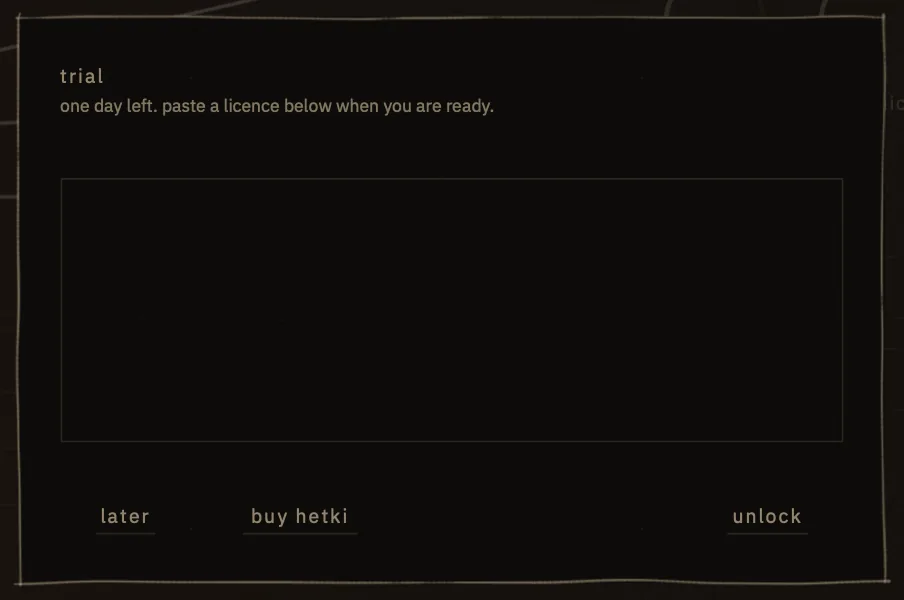
6
The sound library
The piano itself lives in a library of about 10 GB, which hetki downloads for you. With the licence in, a band appears low on the left of the piano, under the mic faders: “the sound library isn't here yet”, with a download button in it. hetki's own button rounds the size to 9 GB; it is the same library. The band comes back whenever hetki has something to say about the library.

- Press download and choose where the library should live. hetki makes a folder called Hetki Samples inside the place you pick. Any drive with about 11 GB free will do, an external one included; hetki checks the space before it starts. hetki counts the library as 9.4 GB, as Windows does; a Mac shows about 10 GB. The same files, measured two ways.
- Leave it running. Every file is checked as it arrives. On a fast line it takes minutes; on a slow one, longer. If it stops, press download again and choose the same place as before, the folder that holds Hetki Samples, not Hetki Samples itself. It carries on from there.

Moving it, or a second computer
The library is an ordinary folder. Move it wherever you like, then tell hetki where it went: open settings, find the row called sample library, and press locate. On another computer, either download it again or copy the folder across and locate it; the licence is the same on every machine.
Memory
hetki streams the piano from disk and keeps only the start of each note in memory. On an 8 GB machine, open settings and set mic loading to close, or close + room: fewer mics are held in memory. The new choice takes hold the next time hetki is loaded: remove it and add it again, reopen the project, or restart the standalone app.
7
Playing
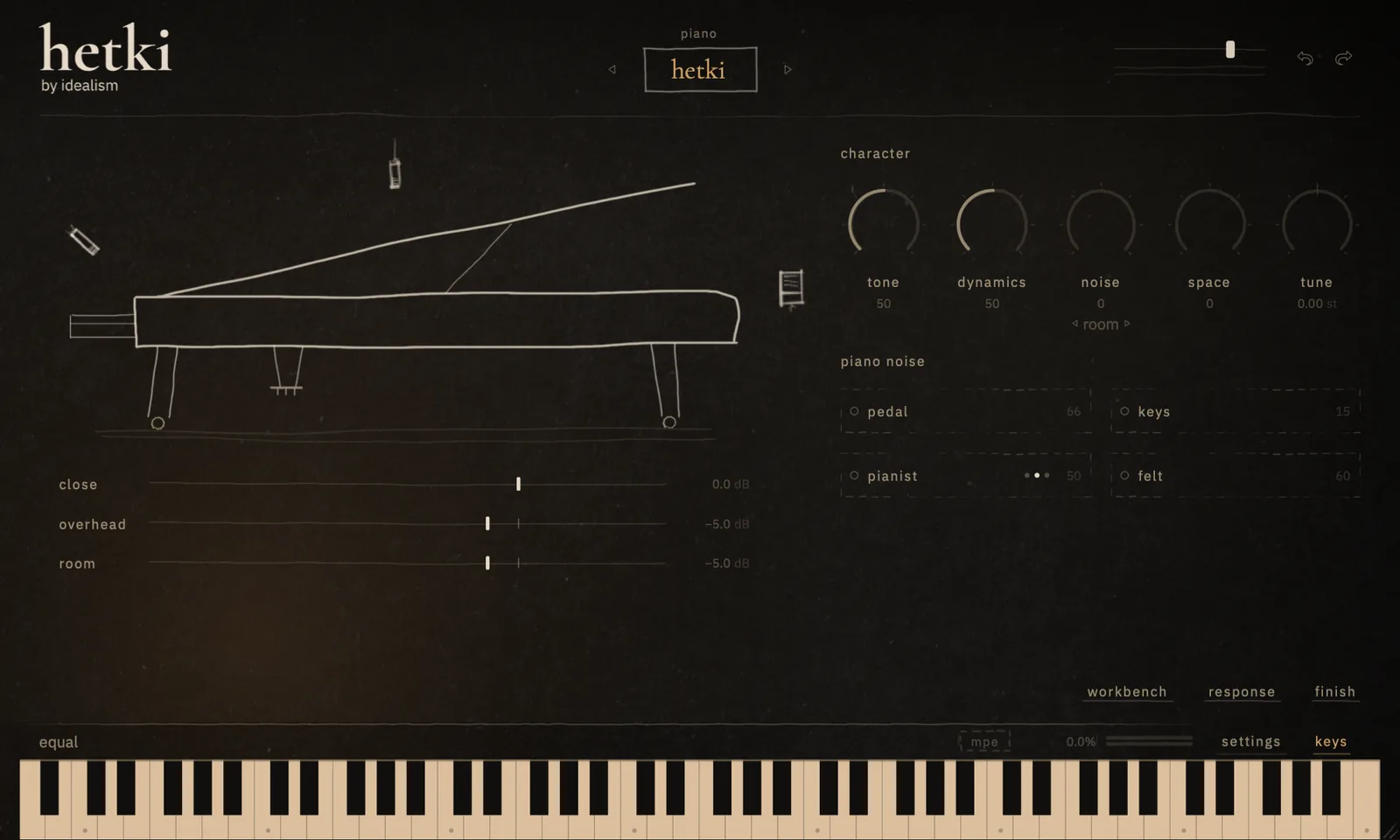
hetki opens on a moment. A moment is a preset: the piano, its mics, the noises, and everything the three doors have set, saved together. Ten come with hetki, four of them the piano on its own and six that take it somewhere else. Pick one from the top of the window and play.
- The face is the piano as recorded: the three mic pairs on their faders, the four recorded noises of pedal, keys, pianist and felt, and five character knobs.
- Three doors open from the face. Workbench is the instrument itself, lid included. Response is how the piano answers your hands. Finish is the air around it.
- Save your own. A moment you make is yours; hetki keeps it beside the factory ten, and updates never touch it.
- Every knob, fader, tile and window row can be automated from your music software, apart from the temperament. Right-click a round knob to learn a MIDI controller.
The front page walks through the interface with the real controls, and each moment has a recording of what it sounds like.
8
Updates
When there is a new version you get an email, and the download page always carries the latest one. Install it over the version you have. Your licence, your library and the moments you saved stay where they are, and nothing has to be entered again. If a new version needs sounds your library does not have yet, the band says so and fetches only those, or the update email tells you what to do. The version you are on is written in settings.
9
When something is not right
Windows said access is denied during the install.
Your music software still had hetki loaded. Close it and run the installer again. Since 1.0.2 the installer names the application for you.
My music software cannot see hetki.
Rescan plug-ins, and check that the format your software uses was ticked in the installer: Audio Unit for Logic and GarageBand, VST3 for nearly everything else. On Windows, hetki is VST3 only.
hetki is not in Logic's or GarageBand's instrument list.
Logic loads Audio Units, not VST3. Run the installer again with Audio Unit ticked, then quit Logic and open it again; it checks a new Audio Unit the first time it starts.
hetki plays nothing, but the keys light.
No licence is in yet, a trial has ended, or the sound library is not on this computer yet. Paste the licence and press unlock, then press download in the band if hetki asks for the library.
It says “that licence doesn't verify. paste it exactly as it was sent”.
Part of the block went missing in the copy. Paste the whole thing again, first line to last, or drop the .hetki file on the window.
The download stopped, or says the connection was lost.
Press download again and choose the same place as before. It carries on from there, and every file is checked, so nothing arrives damaged.
It says “that folder doesn't hold the sound library”.
When you locate a library, choose the folder that contains Hetki Samples, or Hetki Samples itself.
The band says the sound library is missing newer content.
A new version of hetki needs files your library does not have yet. Press download the update; it fetches only what is missing.
Something else.
Write to contact@idealism.co with what you see and, if you have one, your order number. I will answer.
More answers, and a way to get your licence sent again, are on the support page. The licence agreement says what you may do with hetki and its sound.
Anything at all, write to contact@idealism.co.
VST is a registered trademark of Steinberg Media Technologies GmbH.